Terug naar Tips & ToolsTips & Tools 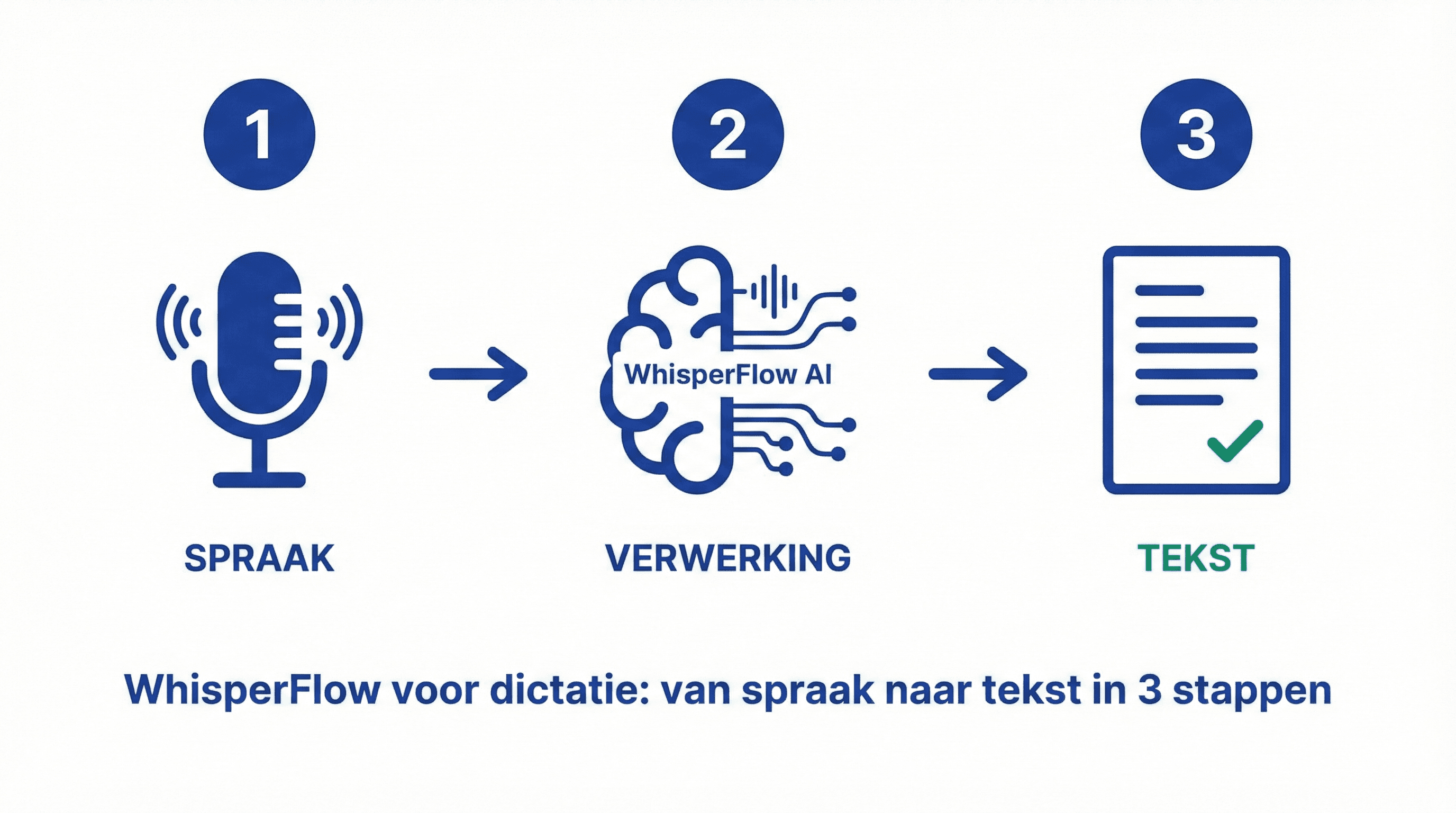
WhisperFlow for Dictation: From Speech to Text in 3 Steps
2 min lezen
Complete guide for WhisperFlow dictation software. Learn in 3 steps how to convert speech into text for notes, emails, and documents.
Learn how to use WhisperFlow to convert speech into text. Complete setup and workflow in 3 simple steps.
# WhisperFlow for Dictation: From Speech to Text in 3 Steps
WhisperFlow makes it easy to convert speech into text. Perfect for notes, emails, or long documents. Here’s how to use it in 3 steps.
Step 1: Setup and Installation
- Download WhisperFlow (available for Windows, Mac, and mobile)
- Grant microphone access in your system settings
- Choose your preferred language (Dutch is supported)
Step 2: First Dictation
- Open WhisperFlow
- Click the record button
- Speak clearly and in short sentences
- Click stop when you’re done
The text will automatically appear on the screen.
Step 3: Edit and Export
- Check the text: WhisperFlow is accurate, but always verify
- Edit if necessary: Make small corrections
- Export: Copy to your favorite app (Word, Notion, email)
Tips for Better Results
- Speak clearly and not too fast
- Use a good microphone (headset works best)
- Ensure a quiet environment
- Use punctuation commands: "period", "comma", "new line"
Practical Use Cases
- Meeting Notes: Dictate your notes during meetings
- Emails: Dictate long emails instead of typing
- Capturing Ideas: Speak ideas while walking or traveling
Conclusion
WhisperFlow saves you a lot of time when creating notes and texts. With these 3 steps, you’ll be more productive right away.
Meer weten over AI?
Neem contact op voor een gratis intakegesprek en ontdek hoe AI jouw bedrijf kan helpen.
