Grammarly AI for Faster Email Communication
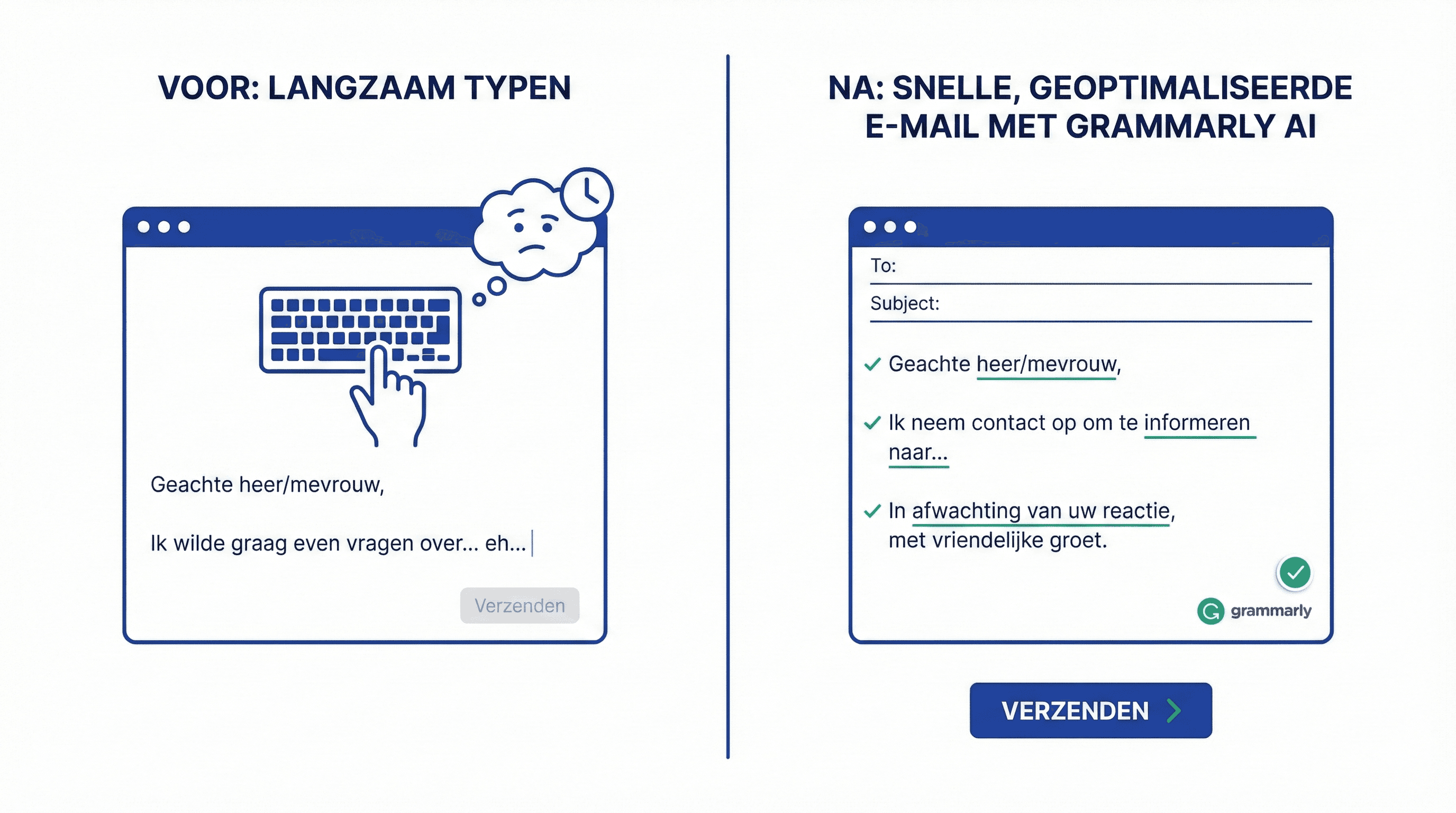
Complete guide to Grammarly AI for email communication. Learn how to write faster and better emails with AI assistance.
Learn how to use Grammarly AI to write emails faster and better. Workflow for professional communication.
# Grammarly AI for Faster Email Communication
Grammarly AI helps you write emails faster and better. Not only spelling and grammar, but also tone, clarity, and effectiveness.
Activating Grammarly AI
- Install the Grammarly browser extension or desktop app
- Log in with your account
- Grammarly works automatically in Gmail, Outlook, and other email clients
Basics: Spelling and Grammar
Grammarly automatically corrects:
- Spelling mistakes
- Grammar errors
- Punctuation
- Style improvements
You see suggestions instantly as you type.
Advanced: Tone and Clarity
Adjusting Tone:
Grammarly suggests adjustments for:
- Formal vs informal
- Friendly vs direct
- Professional vs casual
Example:
- Original: "I received your email"
- Suggestion: "Thank you for your email" (friendlier)
AI Writing Assistant
Grammarly Premium AI features:
- Rephrase: Click on a sentence, choose "Rewrite" for alternatives
- Shorten: "Make it shorter" for more concise versions
- Expand: "Expand" for more detail
- Adjust Tone: "Make it more formal/friendly"
Workflow: Writing Quick Emails
Step 1: Type your first draft
Quickly jot down your thoughts, don’t worry about perfection.
Step 2: Let Grammarly correct
Grammarly automatically corrects spelling and grammar.
Step 3: Use AI suggestions
- Click on sentences for rephrasing
- Use "Improve it" for general enhancements
- Adjust tone with "Make it more [tone]"
Step 4: Review and send
Check the suggestions, accept what fits, and send.
Practical Examples
Client Email:
- Original: "I have received your question and will look into this for you"
- Grammarly AI: "Thank you for your question. I will look into this right away and get back to you within 24 hours."
Internal Email:
- Original: "We need to discuss this"
- Grammarly AI: "Let’s briefly discuss this in a meeting. When works for you?"
Follow-up Email:
- Original: "Have you had time to look at this yet?"
- Grammarly AI: "Could you let me know if you’ve had time to review this?"
Tips for Better Results
- Be specific: Provide context about your audience
- Review suggestions: Not all suggestions are always better
- Learn from suggestions: See what Grammarly improves and learn from it
- Use templates: Save good emails as templates
Integrations
Grammarly works in:
- Gmail (browser and app)
- Outlook
- Google Docs
- Microsoft Word
- Slack
- And many more apps
Conclusion
Grammarly AI makes email writing faster and more effective. With AI suggestions, you write better emails in less time.
Meer weten over AI?
Neem contact op voor een gratis intakegesprek en ontdek hoe AI jouw bedrijf kan helpen.
